Access the Built-In Web Interface From HMS IPconfig
Before You Begin
Download the software application HMS IPconfig installation files and user documentation from www.anybus.com/support.
Note
The Communicator default IP address is 192.168.0.10.
Note
To access the Communicator built-in web interface, ensure that Port 80 TCP is open in your Firewall. This applies to any Firewall between the web browser and the gateway.
Note
To access the Communicator built-in web interface from HMS IPconfig, ensure that port Port 3250 UDP is open in your PC Windows Firewall.
Note
Ensure that the security switch is unlocked. HMS IPconfig cannot configure the Communicator if the security switch is locked.
Procedure
Install HMS IPconfig on your PC.
Open HMS IPconfig.

HMS IPconfig automatically starts scanning for compatible and active HMS devices.
Found HMS devices are added to the device list.
To open the settings pane, click on the Communicator in the device list.
Change the Communicator configuration port IP address to one within the same IP address range as your PC.
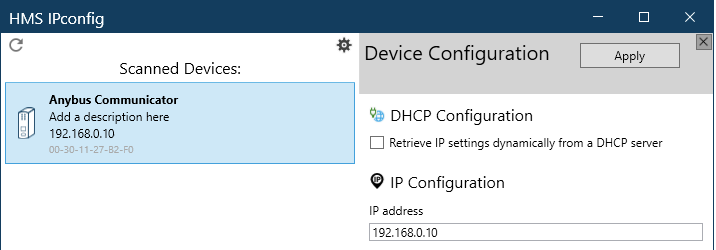
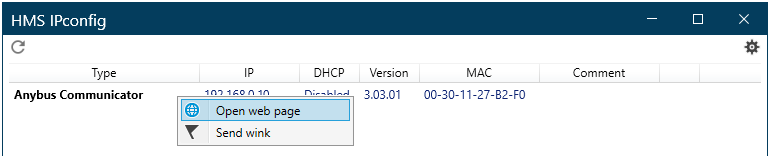
To open the Open web page built-in web interface, click Communicator.
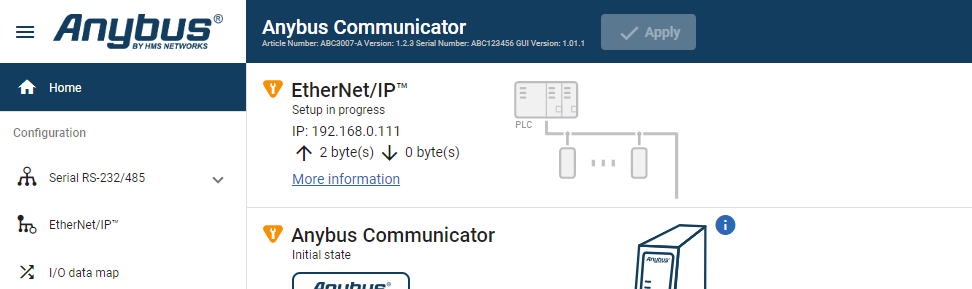
Result
You are redirected to the Communicator built-in web interface Home page.
 |